How to Create a Buffer Zone Around Points in QGIS Step by Step

- Primary Signal: How to Create a Buffer Zone Around Points in QGIS Step by Step
- Overview: Build accurate buffer zones around points in QGIS: the CRS prerequisite, the Buffer tool settings, variable distances, and the mistakes to avoid....
- Verification: Analyzed and compiled by FreeSky GeoData editorial monitoring desk.
Buffering is one of the most useful operations in spatial analysis: draw a zone of a given radius around each feature and ask what falls inside. Planners use it for service coverage, environmental analysts for impact zones, and retailers for catchment areas. In QGIS the Buffer tool does the geometry work — your job is to feed it the right inputs and settings.
Before touching the tool, check your coordinate reference system. Buffer distances are interpreted in the layer's map units, so a layer in WGS84 degrees will happily accept '500' and produce a 500-degree buffer — a nonsense result spanning continents. Reproject your point layer to a suitable projected CRS (a UTM zone for your region is the standard choice) so that distances mean meters. This CRS step is the single most common buffering mistake.
Now open the Processing Toolbox (the gear icon), search for Buffer, and open the Vector geometry version. Set your point layer as the input, enter the distance, and decide whether to dissolve the result: dissolving merges overlapping buffers into one shape, which is what you usually want for coverage analysis, while keeping them separate preserves per-point zones. Square end caps and miter joins matter mostly for lines; for points the default round style is fine.
Fixed distances are only the start. The distance field accepts expressions, so you can make each buffer's radius depend on an attribute — say, a hospital's bed count or a store's floor area. First compute the radius values with the field calculator, then reference that field in the buffer distance. This turns a uniform proximity ring into a genuinely analytical layer, and it is worth getting your field-calculator expressions right before leaning on them.
Buffers become powerful when combined with other tools. Use Select by Location to find all features inside a buffer, or Clip to cut a raster down to the buffered extent. Each of these follow-ups benefits from a quick visual review, so keep a basemap handy — adding an OpenStreetMap basemap lets you confirm at a glance that your zones cover the intended neighborhoods.
A final round of gotchas: buffers around points in unprojected data are the classic failure, dissolving when you meant to keep features separate destroys per-point attributes, and extremely large distances can grind QGIS to a halt on big datasets — test on a subset first. Save the result as a new layer rather than leaving it temporary, and document the distance and CRS in the layer name or metadata so the next person (often future you) knows exactly what the zone represents.
❓ Frequently Asked Questions (Geospatial Briefing)
What orbital telemetry or sensor data corroborates this Geospatial discovery?
Multi-spectral satellite imagery, radar altimetry, and space agency observational feeds provide calibrated observational data confirming the parameters of this event.
How does this observation impact current aerospace and geospatial modeling?
The recorded metrics refine atmospheric correction algorithms and orbital ephemeris models, enabling higher resolution tracking and trajectory accuracy.
When is the next telemetry downlink or public briefing scheduled?
Real-time space agency mission updates and satellite overpass data are ingested continuously through FreeSky GeoData tracking desks.
📖 Continue Reading the Full Story
Continue reading this article on FreeSky GeoData.
⚡ Access Full Content NowMore from FreeSky GeoData
 📈 FreeRich FIRE
How to Create a Zero-Based Budget: A Step-by-Step Guide for Beginners
A zero-based budget gives every dollar of income a job before the month begins. Learn the exact steps to build...
 🔭 FreeSky Cosmos
Why Do Rocket Launches Create Glowing Jellyfish Clouds?
The science behind the glowing space jellyfish seen after the October 13, 2026 SpaceX launch — twilight geomet...
 🔥 ViralBuzz 168
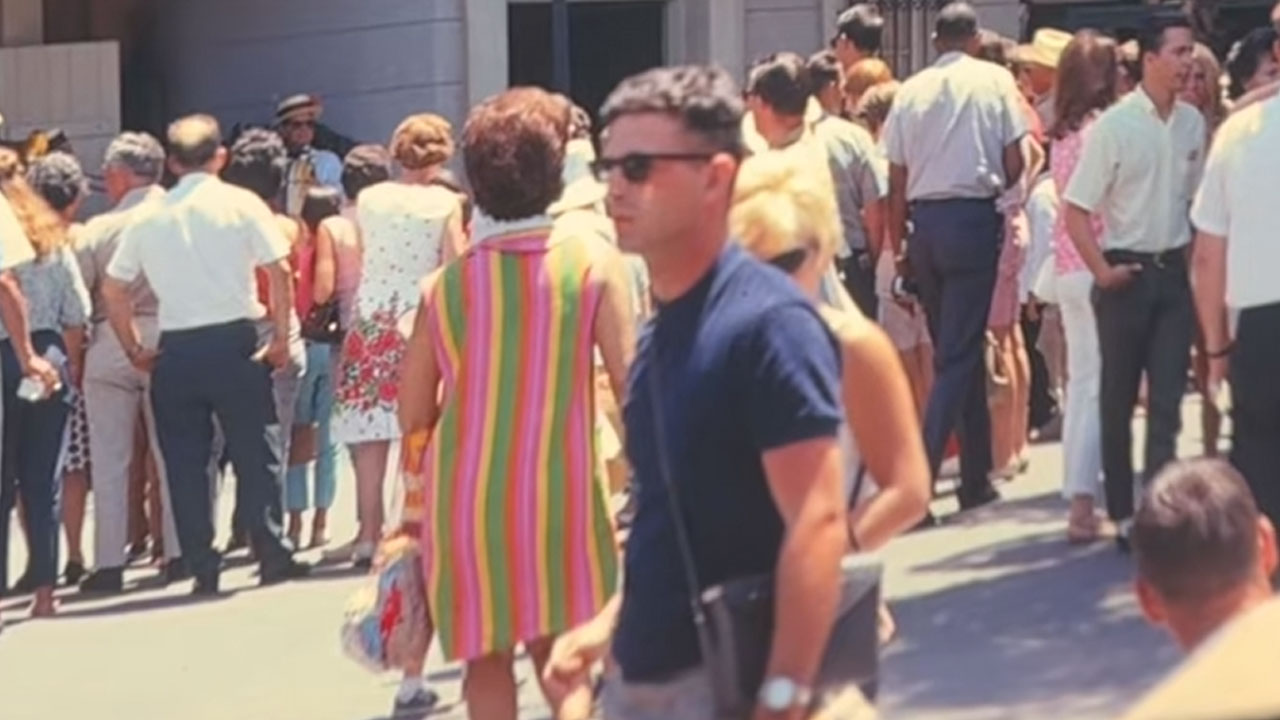
Frau entdeckt auf Disneyland-Foto aus den 1960er-Jahren einen Mann, der aussieht, als wäre er gerade erst aus dem Jahr 2026 gekommen
Die Mode kehrt zurück und alte Trends finden ihren Weg in moderne Kleiderschränke. Eine Frau bemerkte dies, al...
 ⚡ CyberTech 568
How AI Tools Help Students: 6 Practical Ways They Boost Learning in 2026
Curious how AI tools help students beyond just writing essays? From smarter note-taking and personalized tutor...