Watershed Delineation in QGIS: A Step-by-Step DEM Workflow

- Primary Signal: Watershed Delineation in QGIS: A Step-by-Step DEM Workflow
- Overview: Watershed delineation turns a DEM into drainage basins, but each step depends on the last. Follow the fill, flow direction, accumulation, and outlet workflow in order, with checks ...
- Verification: Analyzed and compiled by FreeSky GeoData editorial monitoring desk.
Watershed delineation is one of the most satisfying analyses in QGIS, because it turns a simple elevation model into a map of drainage basins, streams, and outlets that looks like real hydrology. It is also a workflow where each step depends on the previous one, so a mistake early on, such as an unfilled sink or a wrong flow direction, propagates through the whole result. This guide walks through the standard DEM to watershed workflow in the correct order, with the checks that catch errors before they spread.
Begin with a digital elevation model clipped to an area slightly larger than your expected watershed, because watershed boundaries near the edge of a DEM are unreliable where flow data is cut off. Fill sinks in the DEM using the Fill Sinks tool, which removes small depressions caused by data noise that would otherwise trap flow and break the drainage network. Check the filled DEM against the original: the differences should be small and localised, and large filled areas may indicate real lakes or reservoirs that deserve separate treatment rather than blind filling.
Choose a DEM resolution suited to your purpose. Thirty metre SRTM or ALOS data suits catchment scale work, while higher resolution LiDAR data suits small urban or farm catchments but produces much larger files and longer processing times. Reproject the DEM to a projected CRS in metres, such as the local UTM zone, before analysis, because flow tools assume consistent horizontal and vertical units, and a geographic CRS in degrees will distort slope and flow calculations.
Next, run a flow direction tool, which assigns each cell the direction water would flow based on its neighbours, then run flow accumulation, which counts how many upstream cells drain into each cell. High accumulation cells form the stream network, and you extract them by setting a threshold: cells above the threshold become streams, cells below remain hillslope. The threshold controls stream density, so a low threshold produces a dense network of small channels, while a high threshold keeps only major rivers. There is no universal correct threshold; try several values and compare the result with mapped streams or satellite imagery.
Order the stream network if your report needs it, using Strahler ordering, where headwater streams are order one and orders increase where two streams of equal order join. This gives a standard way to describe stream size and compare catchments. Style the streams by order, with wider lines for higher orders, and check that the network looks natural: streams should follow valleys visible in the shaded relief, not cut across ridges or run in straight lines, which would signal a DEM or flow direction problem.
Place your outlet points on the stream network itself, snapped precisely to high accumulation cells, because an outlet placed even one cell off the stream will delineate a tiny incorrect catchment or fail entirely. Use the snap tool or check the accumulation value at your outlet location before running the watershed tool. Then run the watershed delineation tool, which traces all cells draining to each outlet and produces a polygon for each catchment, ready for area calculation, rainfall averaging, or land use analysis.
Validate the result before using it: compare catchment boundaries with topographic maps, check that areas are plausible, and look for catchments that are suspiciously small or oddly shaped. Common fixes include moving the outlet, refilling the DEM, or adjusting the stream threshold, and each fix should be tested one at a time so you know what changed. Done carefully, this workflow produces professional watershed maps from free data, and it teaches the core logic of hydrological modelling that underpins flood studies, water resource planning, and environmental assessment.
📖 Continue Reading the Full Story
Continue reading this article on FreeSky GeoData.
⚡ Access Full Content NowMore from FreeSky GeoData



 ⚡ CyberTech 568
Step-by-Step Tutorial: Palworld Breeding Calculator — Parents, Combos & Paths (Day 2 Guide)
How to accurately use the Palworld Breeding Calculator — Parents, Combos & Paths on CyberTech 568. Discover es...
🤖 WinBar AI
Step-by-Step Tutorial: Freelancer Net Pay Calculator (PKR) — Upwork, Fiverr & Payoneer Fees (Day 2 Guide)
How to accurately use the Freelancer Net Pay Calculator (PKR) — Upwork, Fiverr & Payoneer Fees on WinBar AI. D...
 🛰️ FreeSky Aerial
How to Shoot a Drone Hyperlapse: A Beginner's Step-by-Step Guide
A hyperlapse turns a slow drone flight into a spectacular rushing video. Pick a subject with a clear path, use...
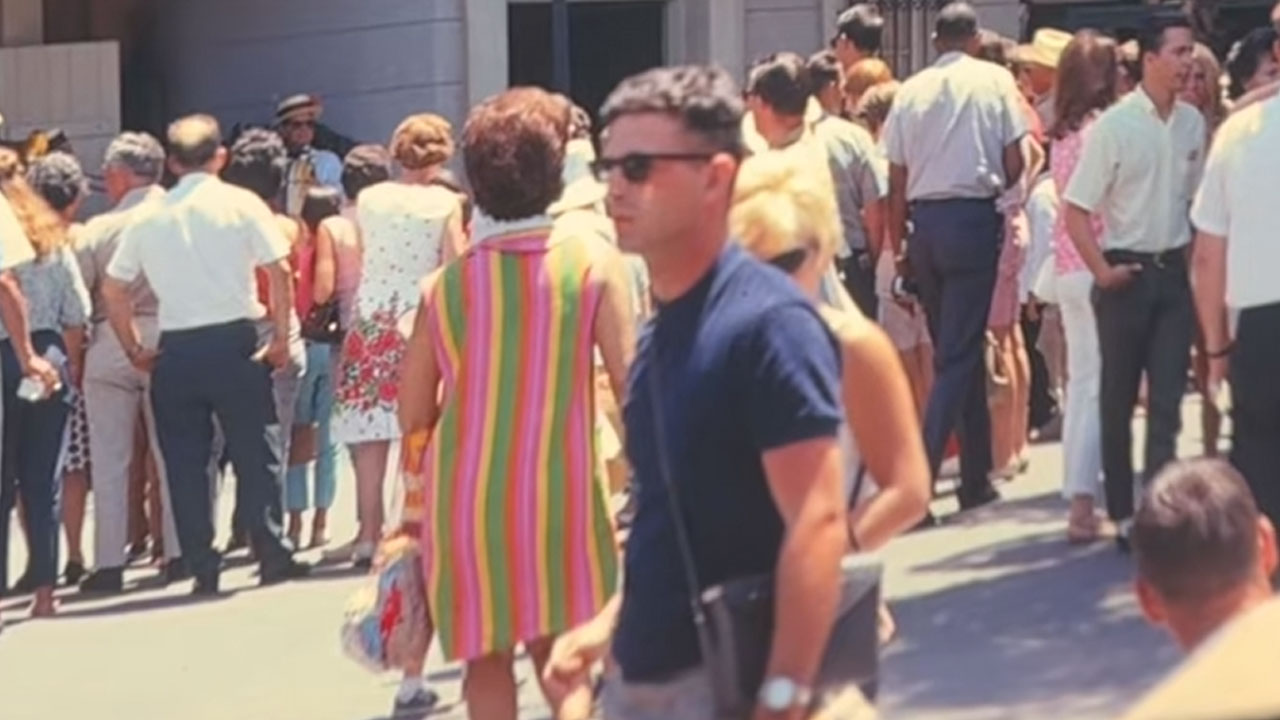 🔥 ViralBuzz 168
Frau entdeckt auf Disneyland-Foto aus den 1960er-Jahren einen Mann, der aussieht, als wäre er gerade erst aus dem Jahr 2026 gekommen
Die Mode kehrt zurück und alte Trends finden ihren Weg in moderne Kleiderschränke. Eine Frau bemerkte dies, al...