Create Your First Map in QGIS: From Data to a Print-Ready Layout
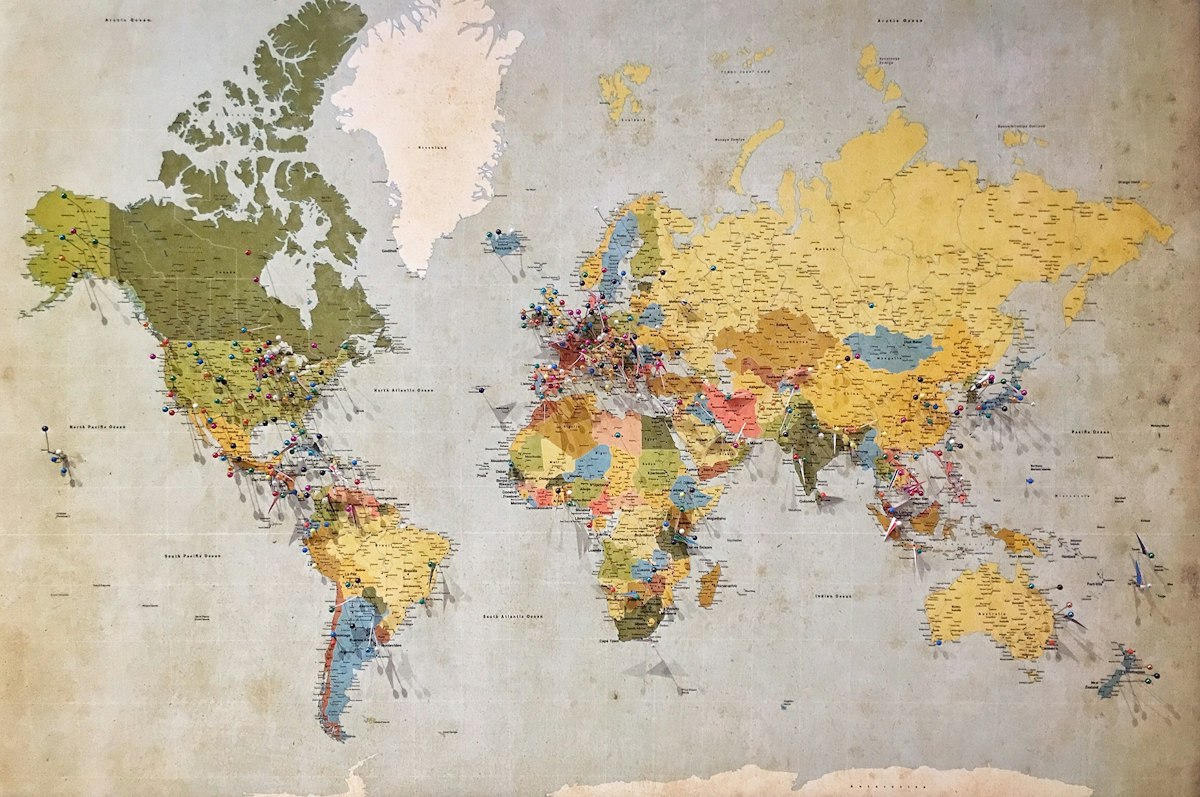
- Primary Signal: Create Your First Map in QGIS: From Data to a Print-Ready Layout
- Overview: Making your first map in QGIS is satisfying and simpler than it looks. This step-by-step guide takes you from downloading free data to a polished, print-ready map layout....
- Verification: Analyzed and compiled by FreeSky GeoData editorial monitoring desk.
Your first map is a milestone in learning GIS, and QGIS makes it achievable in a single afternoon with free data. The process has four stages: get data, style it so it communicates, compose it in a print layout with the elements a reader needs, and export it. Each stage has a few habits that separate a clear, professional map from a confusing one, and this guide walks through all of them with a simple example, such as mapping your town's parks, roads, and waterways.
Start by downloading QGIS from qgis.org and installing it, then gather data. Good beginner sources include OpenStreetMap extracts from Geofabrik or the QuickOSM plugin, national open-data portals, and Natural Earth for country and coastline data. For a town map, download roads, buildings, parks, and water features as vector layers, plus a basemap for context. Keep your files organised in one project folder from the start, because broken file paths are the most common beginner frustration.
In QGIS, add your layers through the Data Source Manager, then check that they align: if layers appear in different places, a coordinate reference system mismatch is the usual cause, and setting the project CRS to match your data, typically a local UTM zone or Web Mercator for display, fixes it. Style each layer deliberately: thin grey lines for minor roads, stronger lines for main roads, soft green fills for parks, and blue for water. Restraint beats rainbow colour schemes, and consistent styling is what makes a map readable.
Open Project, then New Print Layout, and add a map item sized to your page, choosing A4 landscape for a first attempt. Set the map's scale to a round number, centre it on your area, and lock the layers so accidental clicks do not shift it. Then add the elements every finished map needs: a title that states what the map shows, a legend explaining symbols, a scale bar, a north arrow, and a small note crediting your data sources.
Export as PDF for printing or sharing, since it preserves vector sharpness, or as a high-resolution PNG, at least 300 dots per inch, for slides and social media. Open the exported file and check it critically: are labels legible, does the legend match the map, is the scale bar correct, and does the title explain the map without needing extra context? Fix issues in the layout, not in the export, so your project stays reproducible.
📖 Continue Reading the Full Story
Continue reading this article on FreeSky GeoData.
⚡ Access Full Content NowMore from FreeSky GeoData


 🌍 FreeSky Remote
How to Get Your First Client on Upwork With No Reviews (2026)
A blank Upwork profile is not a dead end — every top-rated freelancer started there. This is the practical pla...
 ⚡ CyberTech 568
Best Free AI Voice Changer for Gaming in 2026
A good voice changer adds fun to game night without lag or robotic audio. Compare the best free options for Di...
 🤖 WinBar AI
How to Spot Sharp Money Movement in Betting Odds Before the Line Settles
Sharp money is professional cash moving odds before the public catches on. Here is how to read reverse line mo...
 ☁️ FreeSky Cloud
Best Free Tier Cloud Hosting 2026: Host Projects Without Paying
Compare the best free tier cloud hosting options for 2026, including what is genuinely free, what limits apply...