How to Create Maps in QGIS Print Layout: Titles, Legends, and Export
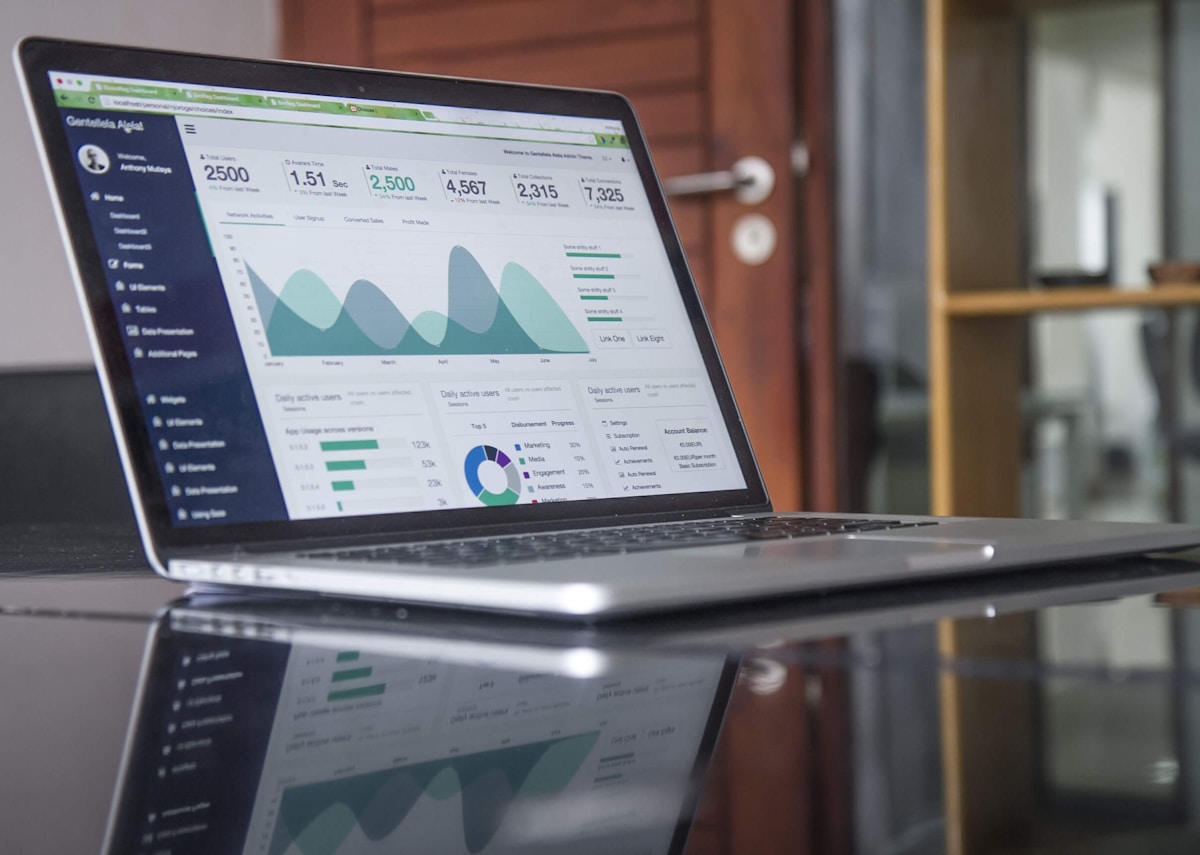
- Primary Signal: How to Create Maps in QGIS Print Layout: Titles, Legends, and Export
- Overview: QGIS print layouts add titles, legends, scale bars, and clean design to your map. Here is how to build, style, and export a professional layout....
- Verification: Analyzed and compiled by FreeSky GeoData editorial monitoring desk.
A good print layout turns a working QGIS map into a professional document ready to share, print, or publish. The map canvas is for exploration, but the print layout is for communication: it adds a title, legend, scale bar, north arrow, and context that help a reader understand the map without you standing beside them. Learning layouts is one of the most practical QGIS skills for beginners.
Start from Project, then New Print Layout, and give the layout a clear name. Add a map item by drawing a rectangle on the blank page, and QGIS will fill it with your current map view. You can then adjust the map's extent, scale, and rotation from the item properties, locking the scale once you are happy so accidental clicks do not shift it. Choose a page size that fits your purpose: A4 for reports, A3 for wall maps, or a custom size for web use.
Next, add the elements every reader expects. A title should state what the map shows and where, in plain language, not just a layer name. A legend should list only the layers visible in the map, with clear labels and symbols that match the map exactly. A scale bar and north arrow help readers judge distance and orientation, and a small source note tells them where the data came from and when it was made.
Style matters as much as content. Use consistent fonts, keep text sizes readable at the final print size, and leave white space around elements so the page does not feel crowded. Align items to a grid, use the same margins on all sides, and check the layout at 100 percent zoom before exporting, because text that looks fine on screen can be tiny in print.
Export from Layout, then Export as PDF for print or as Image for web and presentations. PDF preserves vector quality and text sharpness, while PNG or JPEG is easier to embed in slides and documents. Always export a test copy, open it, and check for cut-off labels, overlapping legend items, or a scale bar that does not match the map. Fixing those details takes minutes and makes a large difference in how professional the map feels.
Once you have a layout you like, save it as a template so future maps start from the same design. Templates save time, keep a series of maps consistent, and help teams produce reports that look like they belong together. You can also duplicate a layout and swap the map extent or layers, producing a set of maps for different regions or dates from one design.
In short, print layouts are where GIS becomes communication. A clear title, honest legend, accurate scale, and balanced design turn data into a map that readers trust and understand, which is the real goal of any mapping project.
Readable maps follow a few simple design rules: one main message, a clear visual hierarchy, and no unnecessary decoration. Make the title largest, the map second, and supporting elements smaller. Use colour sparingly, with a single accent colour for highlights, and avoid rainbow palettes that imply order where none exists. Test your layout in greyscale to check that it still reads clearly when printed in black and white.
Also consider your audience. A map for the public needs plain language and a clear takeaway, while a map for specialists can include technical notes and data sources. Tailoring the layout to the reader, rather than using the same template for everyone, is what separates a good map from a merely correct one.
📖 Continue Reading the Full Story
Continue reading this article on FreeSky GeoData.
⚡ Access Full Content NowMore from FreeSky GeoData


 ⚡ CyberTech 568
Best Free AI Voice Changer for Gaming in 2026
A good voice changer adds fun to game night without lag or robotic audio. Compare the best free options for Di...
 🤖 WinBar AI
How to Spot Sharp Money Movement in Betting Odds Before the Line Settles
Sharp money is professional cash moving odds before the public catches on. Here is how to read reverse line mo...
 ☁️ FreeSky Cloud
Best Free Tier Cloud Hosting 2026: Host Projects Without Paying
Compare the best free tier cloud hosting options for 2026, including what is genuinely free, what limits apply...
🛰️ FreeSky Aerial
How to Carry Medications on International Flights: 2026 Rules
Flying with medication in 2026? This guide covers carry-on rules, the 100 ml exemption for liquid medicines, l...