How to Create an NDVI Map in QGIS Using Landsat Imagery
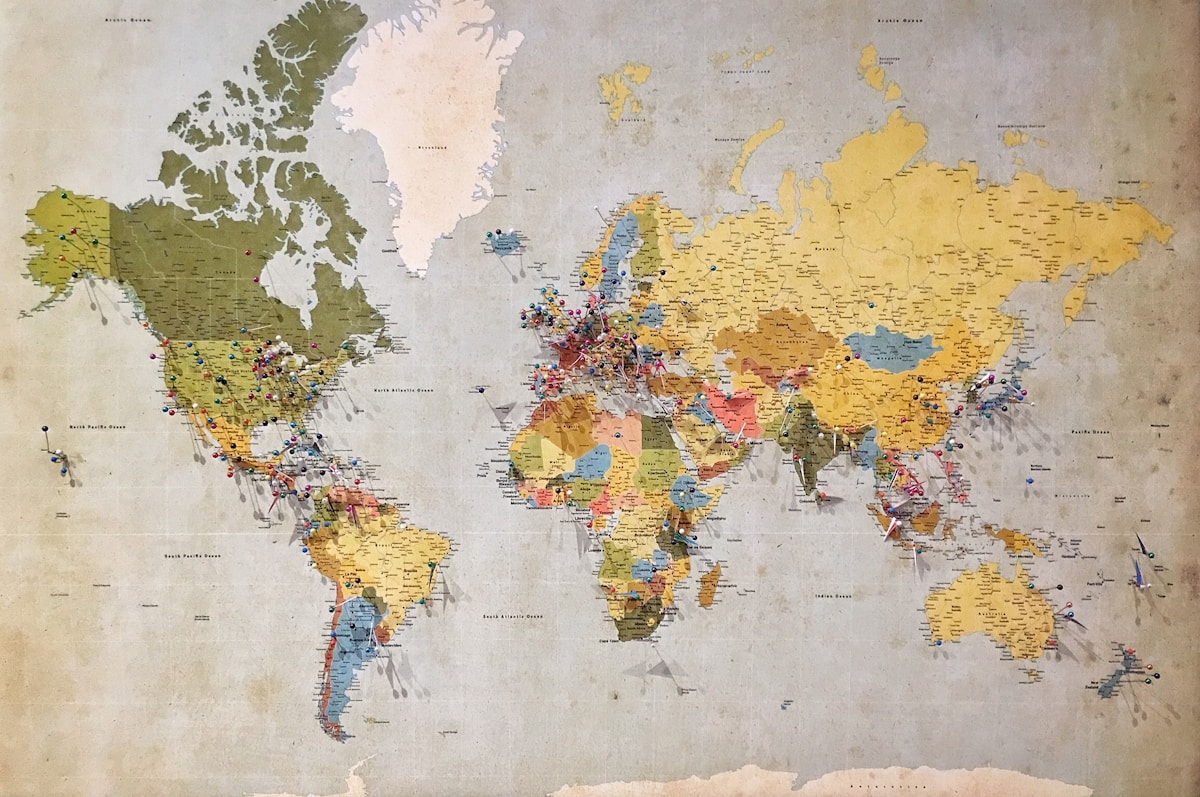
- Primary Signal: How to Create an NDVI Map in QGIS Using Landsat Imagery
- Overview: NDVI turns two Landsat bands into a map of vegetation health in minutes. This guide walks through downloading the right scene, running the Raster Calculator in QGIS, and styling th...
- Verification: Analyzed and compiled by FreeSky GeoData editorial monitoring desk.
The Normalised Difference Vegetation Index, or NDVI, is the single most useful calculation for anyone starting with satellite imagery in QGIS. It turns the red and near infrared bands of a satellite image into a map that shows where vegetation is healthy, stressed, or absent, and it takes only a few minutes once you have the right data. Farmers use it to spot struggling crops, researchers use it to track deforestation, and students use it as their first real remote sensing project, because the result is immediately visual and easy to interpret.
Start by downloading a Landsat 8 or 9 scene from USGS EarthExplorer, which is free after a quick account registration. Search for your area of interest, filter for low cloud cover, ideally under ten percent, and download the Level 2 surface reflectance product, which is already corrected for atmospheric effects. Unzip the download and look for the band files: Band 4 is red, Band 5 is near infrared, and those are the only two bands NDVI needs. Landsat's thirty metre resolution suits regional and farm scale work, though it will not resolve individual trees or small garden plots.
Load both bands into QGIS by dragging them onto the canvas, and check that they align and share the same coordinate reference system. If they do not line up, you may have mixed products or projections, so reload from the same downloaded bundle. Set your project CRS to the UTM zone for your area if you plan to measure areas later, since a geographic CRS in degrees will distort area calculations. A quick visual check matters here: the near infrared band should show vegetation as very bright, while the red band shows it much darker, because healthy leaves absorb red light and reflect near infrared strongly.
Open the Raster Calculator from the Raster menu and enter the NDVI formula: (NIR minus Red) divided by (NIR plus Red). In Landsat 8 and 9 terms, that is (Band 5 minus Band 4) divided by (Band 5 plus Band 4), using the layer names exactly as they appear in your project. Set the output extent to match one of the input layers, choose a GeoTIFF output file, and run the tool. The result is a new raster with values from minus one to plus one, where water and bare ground sit near zero or below, and dense healthy vegetation approaches 0.8 or higher.
Styling turns those numbers into a readable map. Open the layer properties, switch to Singleband Pseudocolor, and apply a colour ramp from red through yellow to dark green, with red for low values and green for high values. Use a continuous ramp for analysis, or a discrete classified ramp with five classes if you are making a map for a report. Add a legend, a north arrow, and a scale bar in the Print Layout, and your NDVI map is ready to present. Always note the image date on the map, because vegetation changes with seasons and a single date map only shows one moment in time.
The most common NDVI mistake is using uncorrected data or mixing bands from different dates, which produces values that look plausible but mean nothing. Cloud and cloud shadow also corrupt NDVI, creating dark patches that look like bare ground, so mask cloudy areas or choose a clearer scene. Finally, remember that NDVI saturates in very dense forest, where it stops distinguishing healthy from extremely healthy vegetation, so researchers often pair it with other indices for detailed studies. With those cautions in mind, NDVI is a reliable first step into satellite analysis, and the same Raster Calculator workflow opens the door to dozens of other indices.
📖 Continue Reading the Full Story
Continue reading this article on FreeSky GeoData.
⚡ Access Full Content NowMore from FreeSky GeoData


 ⚡ CyberTech 568
Internet Latency Test: How Fast Is Your Connection?
Test your internet latency free. Get accurate ping measurements and learn what your numbers mean for gaming an...
🤖 WinBar AI
Instagram Reels Downloader for PC: Save Reels Free Online
Download Instagram Reels to your PC free — no app, no login. Paste the reel link and save in HD quality straig...
 ☁️ FreeSky Cloud
ROI & Value Audit: GST Calculator — Add or Extract GST & VAT (Day 15 Guide)
How to save time and eliminate guesswork with GST Calculator — Add or Extract GST & VAT on FreeSky Cloud. Disc...
 🛰️ FreeSky Aerial
How to Shoot a Drone Hyperlapse: A Beginner's Step-by-Step Guide
A hyperlapse turns a slow drone flight into a spectacular rushing video. Pick a subject with a clear path, use...