Drone Mapping Workflow With WebODM for Beginners: Fly, Process, Map
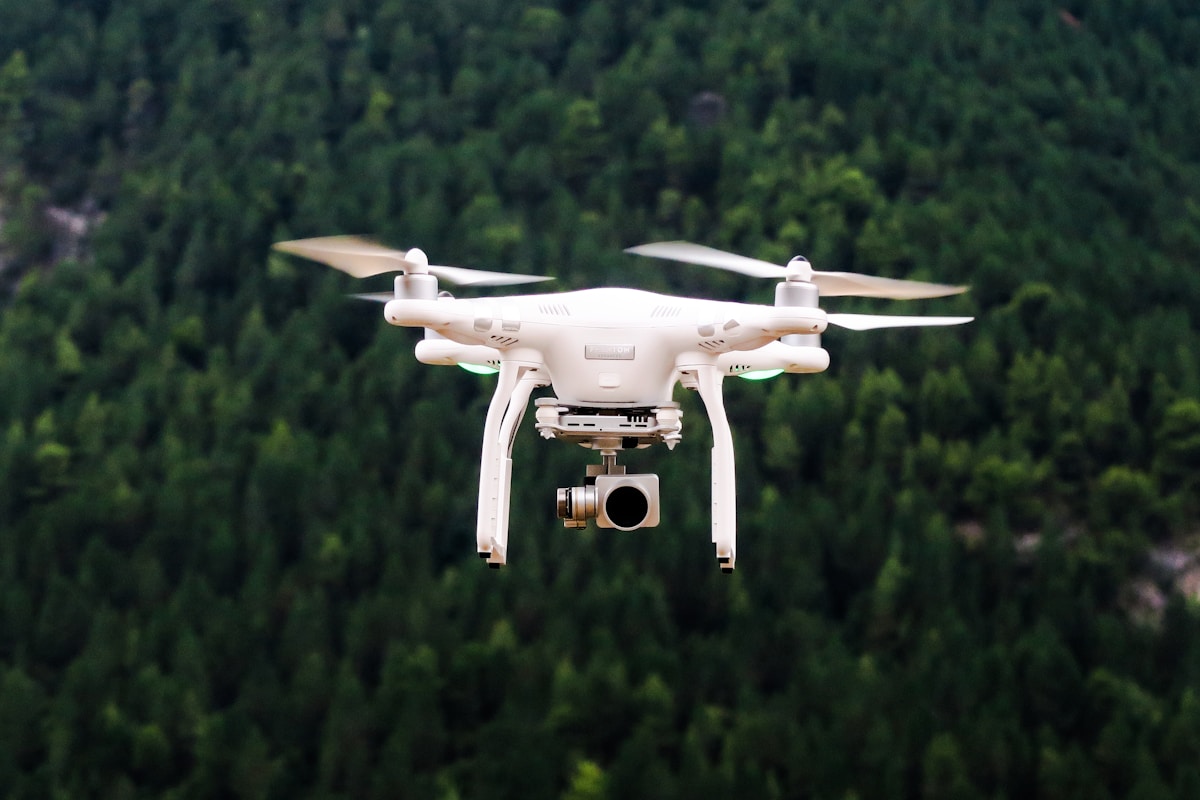
- Primary Signal: Drone Mapping Workflow With WebODM for Beginners: Fly, Process, Map
- Overview: WebODM turns overlapping drone photos into maps and 3D models for free. This beginner workflow covers flight planning, processing, and checking your first orthomosaic....
- Verification: Analyzed and compiled by FreeSky GeoData editorial monitoring desk.
Drone mapping with WebODM turns ordinary drone photos into maps, 3D models, and elevation data, all with free, open-source software. The workflow sounds technical, but it follows a simple idea: fly a planned grid over an area, take many overlapping photos, and let software stitch them together by matching features across images. For beginners, success depends more on good flight planning than on advanced settings.
Start with a clear goal: do you need a 2D orthomosaic map, a 3D model, or elevation data? That choice affects flight height, overlap, and camera angle. For a standard map, fly a grid pattern with at least 75 percent forward overlap and 65 percent side overlap, keeping the camera pointing straight down. Lower altitude gives finer detail but covers less area per flight, so balance detail against battery life and area size.
Check conditions before flying. Fly in consistent light, avoid strong wind, and keep the drone's camera settings manual if possible, so exposure does not change between photos. Place a few ground control points, markers with known coordinates measured by GPS, if you need accurate positioning. Even simple, well-placed markers improve the final map's accuracy dramatically compared with GPS-only processing.
After flying, transfer your photos to a computer and open WebODM, which runs in a browser after installation via Docker or a desktop installer. Create a new project, upload the photos, and check that WebODM reads their GPS and camera data correctly. For a first run, use the default settings: they are tuned for general mapping and will produce an orthophoto, a digital surface model, and a point cloud without requiring you to tweak advanced options.
Processing time depends on photo count and computer power. A small project with a few hundred photos may take under an hour, while a large project can take several hours. Be patient, keep the computer plugged in, and do not close the browser during processing. When finished, preview the orthomosaic for gaps, warping, or blurry areas, which usually indicate insufficient overlap or a problem during flight.
Export your results as GeoTIFF for the orthomosaic and elevation model, and as a point cloud or 3D model if needed. Open the orthomosaic in QGIS to check alignment against a basemap, measure distances, and create a final map layout. Share results as a web map or PDF, depending on your audience, and keep the original photos and project files for reprocessing.
Your first WebODM project may not be perfect, and that is normal. Review what went wrong, adjust overlap or flight height next time, and repeat. After two or three projects, the workflow becomes routine, and you will have a reliable, low-cost method for producing professional-looking drone maps.
If WebODM fails or produces a distorted map, the cause is usually flight data, not software. Check for insufficient overlap, blurry photos, or large exposure changes between images. Also check that photos have GPS tags; without them, WebODM cannot place images correctly. Removing a handful of bad photos and reprocessing often fixes a project that initially looked broken.
Hardware matters too. WebODM processing uses significant RAM and disk space, especially for large projects. Free up disk space, close other heavy applications, and consider processing in smaller tiles or at lower resolution for a first test, then reprocessing at full quality once you know the flight data is good.
With patience and a few practice flights, WebODM becomes a reliable part of your mapping toolkit, turning a drone and a laptop into a low-cost survey system you can use again and again.
📖 Continue Reading the Full Story
Continue reading this article on FreeSky GeoData.
⚡ Access Full Content NowMore from FreeSky GeoData


 🌍 FreeSky Remote
The Best Freelance Rate Calculator Methods for Beginners (2026)
New freelancers almost always undercharge. Here are the rate-setting methods that actually work for beginners ...
 ⚡ CyberTech 568
Best Free AI Voice Changer for Gaming in 2026
A good voice changer adds fun to game night without lag or robotic audio. Compare the best free options for Di...
 🤖 WinBar AI
How to Spot Sharp Money Movement in Betting Odds Before the Line Settles
Sharp money is professional cash moving odds before the public catches on. Here is how to read reverse line mo...
 ☁️ FreeSky Cloud
Best Free Tier Cloud Hosting 2026: Host Projects Without Paying
Compare the best free tier cloud hosting options for 2026, including what is genuinely free, what limits apply...